01 Free macOS app

Open a clip, chop it, ship it.
The quick audio and video chopper macOS never shipped. Cut the dead air off the front of a recording, lift a clip out of the middle, drop the takes that didn’t work — then export. In the spirit of ChopShop, but free.
Requirements
macOS 14+ · Apple Silicon & Intel · Version 0.1.0
Build from source
First launch
Splice is ad-hoc signed rather than notarized, so macOS may flag it. In Applications, right-click Splice → Open → Open. You only do this once.
02 The window
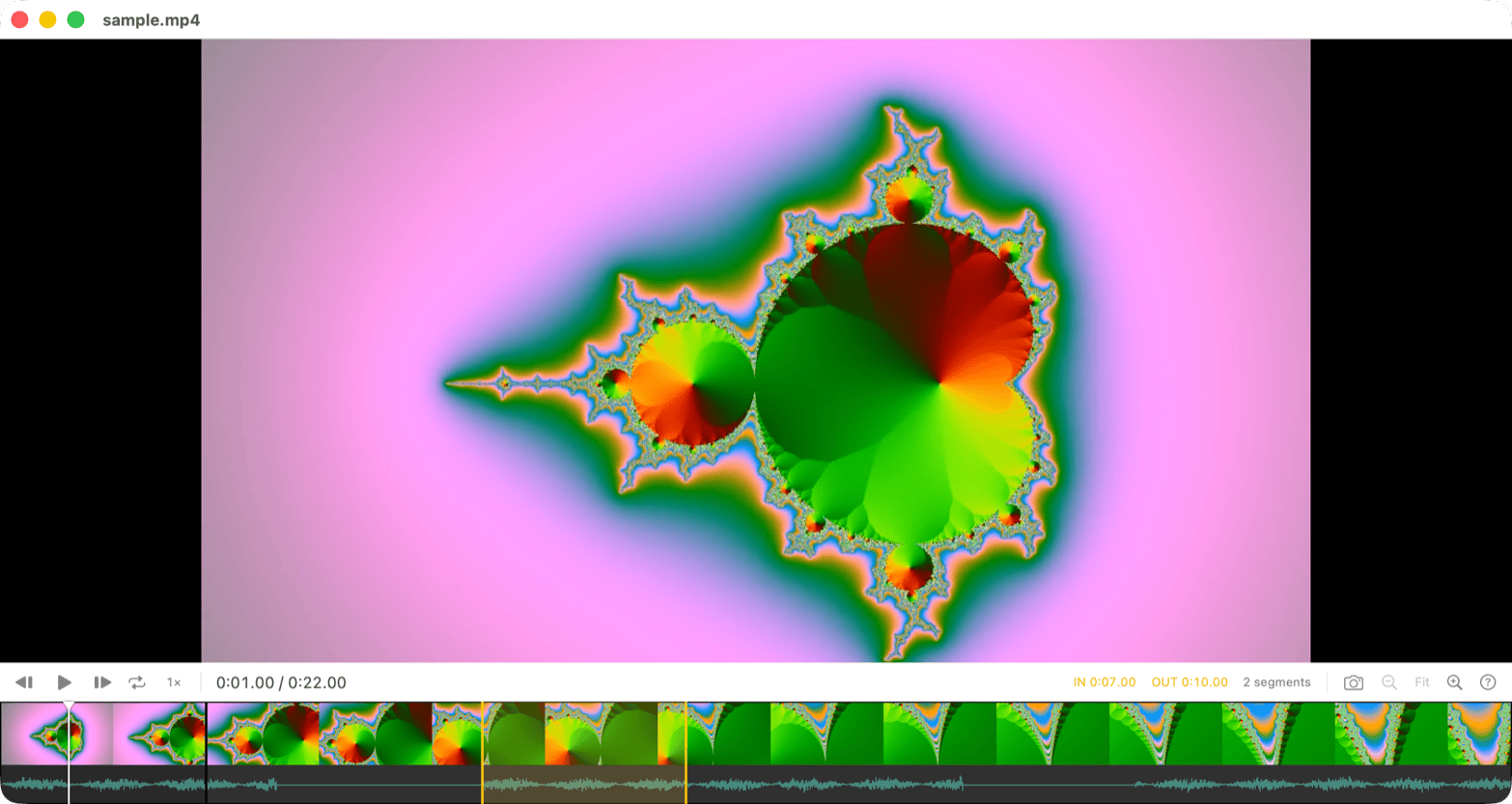
The picture, the transport, and the strip you cut on.
Thumbnails at even intervals over a waveform decoded from the whole file. Click or drag to scrub; the yellow band is what you have marked.
03 The model
Four ideas, and there’s nothing else to learn.
Splice is small on purpose. Everything it does falls out of these, which is why it doesn’t come with a manual.
The file is the session
No project to name, save, or lose. You open a clip and you're editing it; close the window and nothing is left behind but what you exported.
Segments
The timeline is the list of pieces you kept, in order. Every edit either shortens a segment or splits one in two — that's the whole data model.
Marks
In and out float above the segments rather than belonging to any one of them, so a selection can span a cut you already made.
The preview is the export
Playback runs off a rebuilt composition of the kept segments — the same one the exporter writes. What you watch is what ships.
04 Controls
Every edit is one keystroke.
Nothing opens a dialog to ask you about it, and everything undoes — two hundred steps deep.
In / out
I and O drop marks at the playhead; Esc clears them
Trim
⌘T keeps the selection and throws the rest away
Cut
⌫ lifts the selection out and closes the gap behind it
Split
S divides the segment under the playhead in two
Fine trim
Drag a segment edge; the strip previews the new length live
Zoom
⌘-scroll to zoom under the pointer, ⌘9 to frame the selection
Loop
⌘L plays the in/out selection over and over while you nudge it
Speed
0.25× to 2× preview with pitch correction; exports stay at 1×
05 Remove silence
The quiet parts, gone in one pass.
⌘K finds every stretch quieter than the threshold and longer than the minimum, marks them in red on the timeline, and closes the gaps when you say so.
Three dials
How quiet counts as silence, how long it has to last, and how much breath to leave on either end so words keep their attack. The count and the total update as you drag.
Free to compute
Detection reads the waveform Splice already decoded to draw the strip, so it answers instantly however long the recording runs.
Just another edit
What it leaves behind is ordinary segments. Don’t like a join? ⌘Z, or drag its edge back out.
06 In & out
Hands stay on the keyboard.
Export passes through untouched when the container will take the codecs verbatim — otherwise H.264 1080p or 720p, or audio straight out to .m4a.
- Space
- Play / pause
- ← →
- Step one frame (⇧ for a second)
- J / K / L
- Shuttle back / pause / forward
- I / O
- Set in / out point
- ⌘T / ⌫
- Trim to selection, or cut it out
- ⌘K
- Remove silence…
- ⇧⌘S / ⇧⌘C
- Save / copy the frame at the playhead
- ⌘E / ⌥⌘E
- Export / save audio only
Nothing leaves the Mac
No account, no network calls, no analytics. Splice reads the file you hand it and writes where you tell it — the only thing it remembers between launches is the folder you exported to last.
Copy-protected files are turned away with a plain explanation, rather than failing halfway through an export.
07 Install
Up and running in a minute.
-
01
Download & open
Grab the disk image and drag Splice into your Applications folder. First time only: right-click Splice → Open, to clear macOS’s unidentified-developer check.
-
02
Drop a clip
Or ⌘O, or drop it on the Dock icon. Video and audio both — .mov, .mp4, .m4v, .m4a, .mp3, .wav, .aiff. The filmstrip and waveform draw themselves.
-
03
Chop and ship
Mark, trim, cut, split — undo freely. Then ⌘E, pick a format, and Splice opens the panel where you exported last time.
Free & open source · Source on GitHub
08 Next step
Need something built with this much care?
Splice is what we make for ourselves. Tell us what you’re making and we’ll reply within 1–2 business days.